Client Simulator Demo
To help you quickly understand and test the License Manager SDK (especially the Python client experience), we provide a Client Simulator Demo based on a desktop environment. This tool primarily simulates the typical authentication and management workflow of clients such as machine vision applications.
You can find the relevant code and design documents in the examples/客户案例1 directory of the Python SDK.
⬇️ Download Experience
- Windows 64-bit Standalone Executable: LMClientSimulator-win64.exe
Interface Overview
The Demo visually demonstrates the actual operation of device fingerprint recognition, authorization status, local activation, and real-time cloud management.
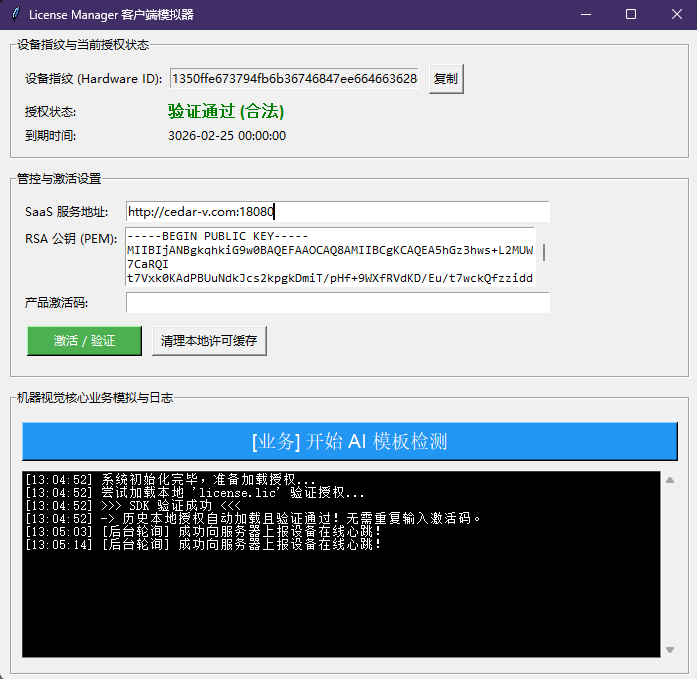
Core Functional Areas
The tool interface is divided into three main parts to ensure the transparency and real-time nature of the authorization status:
1. Device Recognition and Status Display Area (Top Panel)
- Device Fingerprint (Hardware ID): Automatically extracts the unique hardware characteristic Hash of the current machine (implementing "one machine, one code" to prevent abuse). You can perfectly copy this fingerprint to issue an offline license manually in the backend.
- Current Authorization Status: Prominently indicates whether the current authorization is valid (Trial/Authorized) or abnormal (Unactivated/Expired/Banned) through traffic light signals and colored text.
- Device Quota and Validity Period: Transparently displays the current license's usage limits and expiration time.
2. Authorization Operation Area (Middle Panel)
- Product Activation Code Input:
- Online Activation: Enter a pure
LIC-xxxxformat activation code. In a networked state, it will automatically request the cloud server to issue a license. - Offline Sideloading: Designed for air-gapped environments without external network access. Enter the complete offline authentication envelope data containing
&. The tool will extract the envelope content and save it to the disk, achieving extremely fast validation under physical isolation.
- Online Activation: Enter a pure
- Clear Local Cache: One-click deletion of the locally generated
license.lic, quickly resetting the tool to the "unauthorized" state, making it convenient for repeated testing.
3. Business Simulation and Base Log Area (Bottom Panel)
- Start Business Inspection (Simulation Button): Simulates the startup of the core business engine (e.g., machine vision inspection). Authentication is triggered before clicking:
- If within the valid authorization period: A success popup appears.
- If the authorization is invalid or locked by the heartbeat hook: Execution is blocked and a warning is issued.
- Runtime Console Log: Transparently displays the base heartbeat status (e.g., attempting to report status to the server every 30 seconds) and network behavior. Even if the network is briefly disconnected, the business will not be completely stuck thanks to the hybrid authentication mechanism.
High-Frequency Testing Scenario Suggestions
We recommend you test the robustness of the authorization system through the following common scenarios:
- Second-level Signature Verification in Disconnected Environment: Unplug the network cable, paste the complete offline authentication code containing
&and activate it. Verify that it passes quickly without network access and you can successfully click to start the simulated business. - Anti-freeloading Audit under Network Connection: Restore the network. At this point, you can forcefully kick out the license bound to the device or execute the unbind operation in the SaaS backend.
- Millisecond-level Heartbeat Blocking Response: Wait for one heartbeat cycle (shortened to 30 seconds by default in the tool for demonstration purposes). Once the heartbeat returns "banned," without needing to restart the program, the interface will instantly turn red and automatically block the execution of the core business.